
 CutOptimizer for SOLIDWORKS
From model to cutting plan in one click.
CutOptimizer reads the cut lists, plates, purchased parts and file properties of your SOLIDWORKS model and produces the cutting plan, the sheet nesting, laser DXF files and a complete material specification.
3-day free trial with all features. No credit card needed.
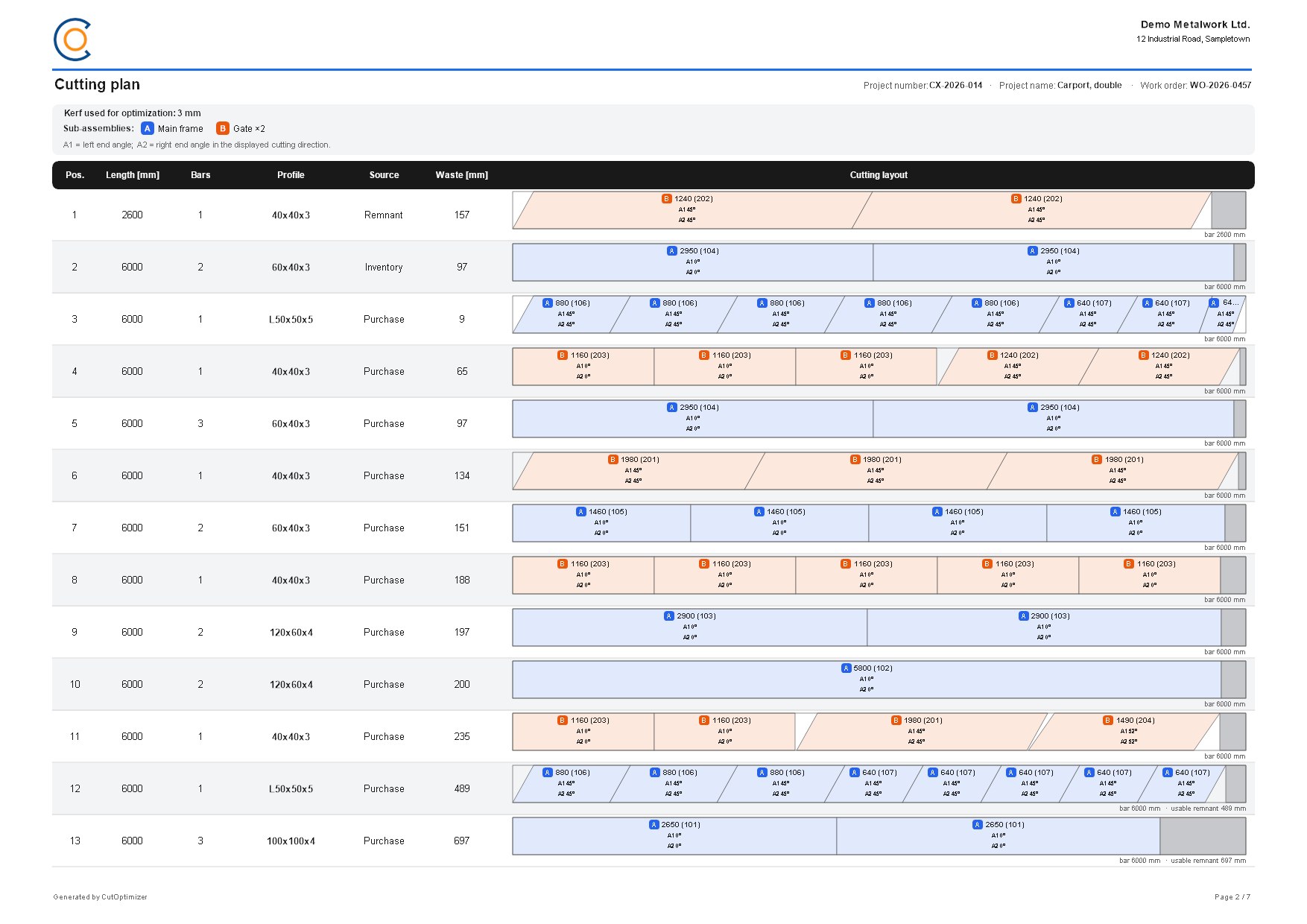
The documents your workshop and purchasing actually use
Every image below is a page of a real CutOptimizer report, made from a demo carport model. Click a page to see it full size.
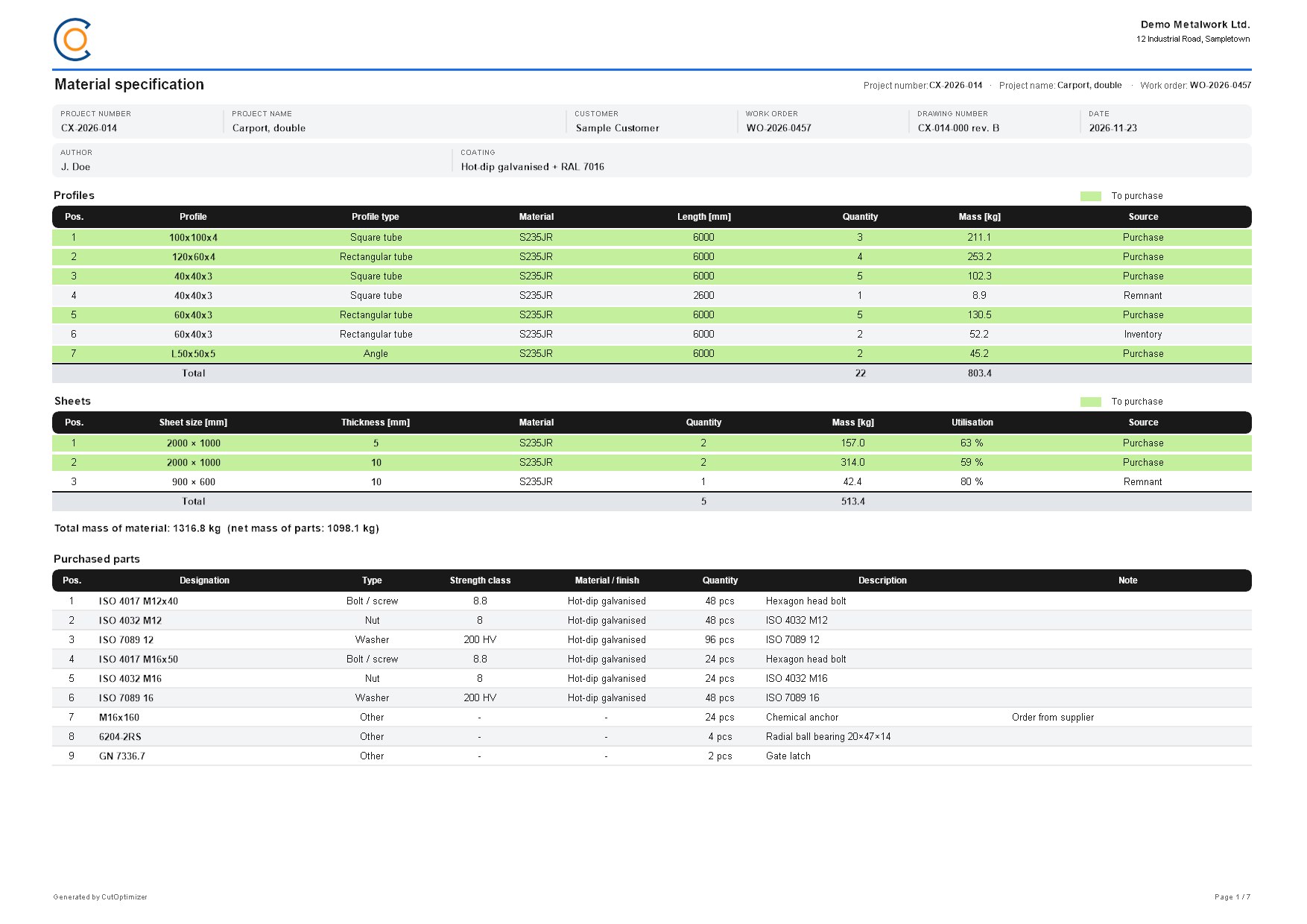
One document for purchasing
Profiles, sheets and purchased parts on one page, with lengths, quantities, mass and where each item comes from. What has to be bought is marked green.
- Stock bars, remnants and inventory used before anything new is bought
- Toolbox fasteners with strength class and finish
- Total mass of material and net mass of the parts
Bars cut with the least waste
All pieces of one profile are optimised together. Each bar shows the cut lengths, the end angles and the sub-assembly the piece belongs to.
- Mitred ends share one saw cut
- Kerf, machining allowance and rounding to whole mm
- Usable remnants reported and kept for the next job
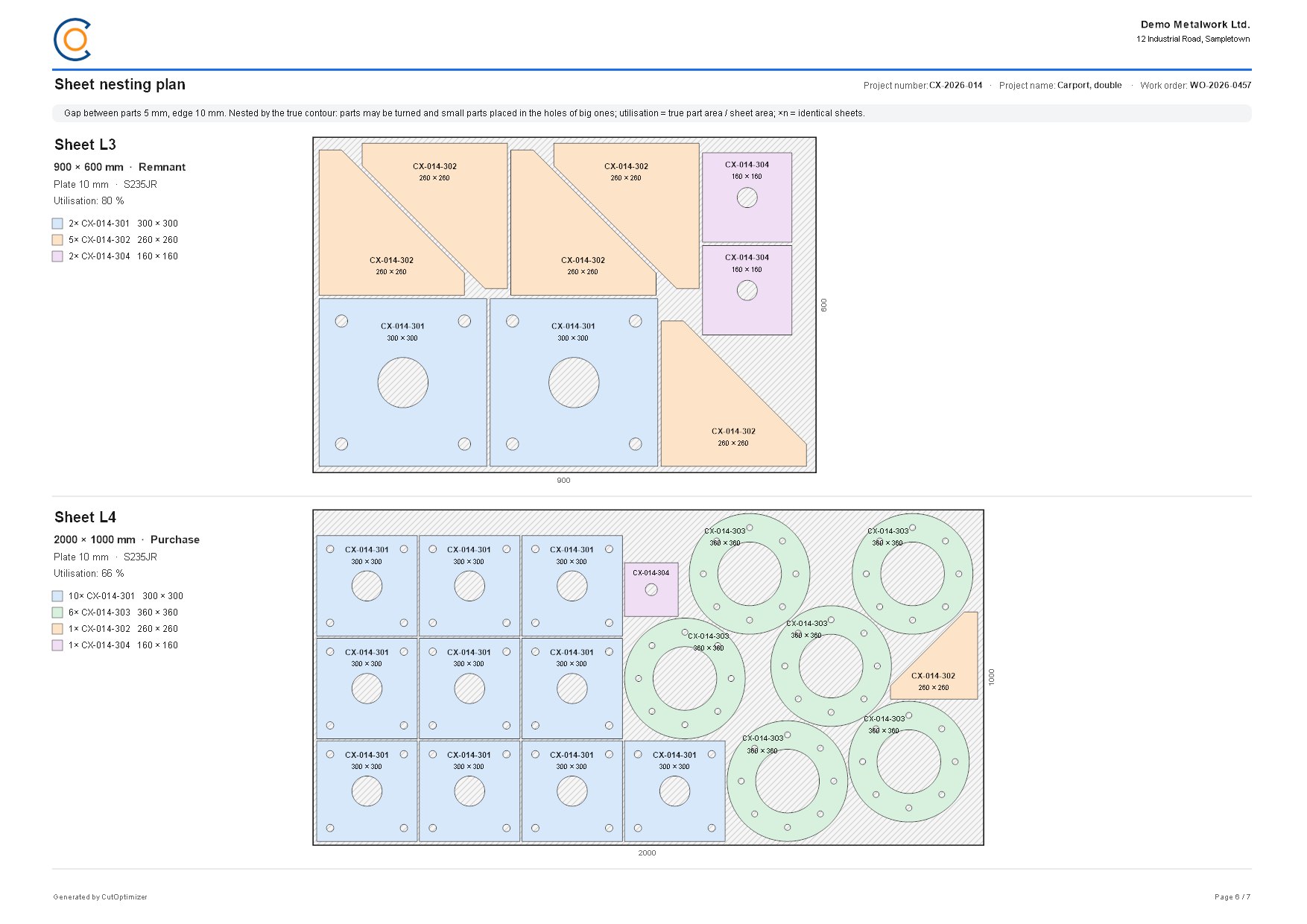
Plates nested by their true contour
Plates and sheet-metal parts are nested by their real flat-pattern outline, holes included. Remnant sheets in stock are filled first.
- Several sheet formats; the cheapest combination is chosen
- Grain direction kept across the bend lines
- Same layout as DXF for the laser
Ready for the laser, no redrawing
One DXF in millimetres at 1:1 with closed contours. Cutting, bend lines, engraving and labels sit on separate layers and colours, so the CAM software assigns the operations by itself.
- Bend lines engraved for the press brake
- Drawing number from the part's file property, engraved on the part
- Parts grouped by thickness, or the nested sheets as DXF
The pages are rendered by CutOptimizer from a demo model (company, customer and part names are examples). Reports carry your company name, address and logo, in English, German, French, Italian, Spanish or Croatian.
Your data is already in the model. CutOptimizer uses it.
CutOptimizer was developed in a working design office, for real fabrication projects. It reads what you already keep in SOLIDWORKS instead of asking you to type it again.
| Project | CX-2026-014 |
| Description | Carport, double |
| Customer | Sample Customer |
| WorkOrder | WO-2026-0457 |
| Drawing number | CX-014-000 rev. B |
Map each report field to the property name you use. Nothing to retype.
Project data from file properties
Each field takes its value from a SOLIDWORKS custom property, the file name, today's date or your own default. Values you change are remembered per model and shown in yellow. Your files are never written to.
Your own fields
Add work order, drawing set, coating or anything else. Choose which fields go on the report, which go into the header of every page, and in which order.
Drawing numbers on the laser parts
The laser DXF takes each part's drawing number from its own file property (configuration first), so every cut part can be engraved and found on the drawing.
Sub-assembly piles
Pieces get the mark of their sub-assembly (A, B …) on the cutting plan, and a sorting list with tick boxes tells the workshop what goes on each pile.
Purchased parts sorted out
Toolbox bolts, nuts and washers are recognised with strength class and finish, bearings get their designation, and any part can be marked as purchased with a note for the supplier.
Your stock, your report
Import stock bars and sheets from CSV or Excel, keep remnants, choose the columns and their order in the report tables, and add your logo and address.
Load, check, export
Load the model
Open a weldment, sheet-metal part or assembly – also imported STEP models – and click Load model in the CutOptimizer task pane.
Check the result
Pieces, plates, purchased parts and stock are listed. Change anything – the result is recalculated.
Export
PDF cutting and nesting plans, Excel, laser DXF and the material specification – for the workshop and for purchasing.
One yearly subscription, every feature
Updates and support are included. Cancel any time; the licence runs until the end of the paid year.
Single
For one engineer on one computer.
- 1 computer
- All features and export formats
- All updates during the subscription
- E-mail support
Company
One licence key for the whole team.
- 3 computers with one key – 20 % less than 3 × Single
- All features and export formats
- All updates during the subscription
- Priority e-mail support
Secure checkout by Stripe. Your licence key is shown right after payment and sent by e-mail.
What you need
- CADSOLIDWORKS 2026
- SystemWindows 10 / 11, 64-bit
- Runtime.NET Framework 4.8
- Internetfor activation; works offline up to 14 days
- Installationadministrator rights
Questions
How does the free trial work?
Install CutOptimizer and click Load model. A 3-day trial with every feature starts on that computer. Exports made during the trial carry a TRIAL watermark.
Does it work with our own property names?
Yes. In Settings → Project data each report field is mapped to the custom property name your templates use, for example "Project" or "Auftrag". You can add your own fields as well.
Can I move my licence to another computer?
Yes. Deactivate it in the licence dialog on the old computer and activate it on the new one. A lost or broken computer can be released with a one-time link sent to your e-mail. Up to 3 transfers per licence and year.
Do I need an internet connection?
Only for activation and a short check about once a day. Without a connection the licence keeps working for up to 14 days.
Who processes the payment and issues the invoice?
Payments are handled by Stripe. Orders are sold through Link, Stripe's merchant of record, which calculates the tax and sends the receipt. Subscriptions can be managed or cancelled at link.com.
Will my models be changed or uploaded?
No. CutOptimizer only reads the model inside SOLIDWORKS and never writes its properties. Nothing about your models leaves your computer; only licence data is exchanged with our server.
Which languages are supported?
The interface and the reports are available in English, German, French, Italian, Spanish and Croatian, chosen independently.
Try CutOptimizer free for 3 days
Download the installer, open a model in SOLIDWORKS and click Load model. The trial starts automatically.